





Subversion is a software source code "Change Management" (CM) system for collaborative development. It maintains a history of file and directory versions. The files and directories are checked out of the repository and into your local project work area. This called your "working directory". Changes are made to files in your "working directory". After changes are made to the create the next working version, the files are checked into the Subversion CM repository.
Subversion command summary cheat sheet:
| Command | Description |
|---|---|
| svn --help | List Subversion commands |
| svn help command Also: ? or h |
Help on given "command" |
| svn add filename
svn add directory |
Add a file or directory to Subversion CM control. Must also perform: svn ci filename (or svn commit) to upload the file or directory. File will not be available in the repository until a "commit" is performed. If adding a directory, the directory and all of its contents recursively are added. i.e.: svn ci directory svn commit directory svn commit . |
| svn blame filename svn blame -r RevisionNumber filename Also: praise, annotate, ann |
Show file contents with revisions annotated with author information. |
| svn cat filename | List contents of file under Subversion control. |
| svn checkout http://node-name/repos/svn/trunk/parentPath/path This creates: path/file1 path/file2 ... svn checkout http://node-name/repos/svn/trunk/parentPath . svn checkout file:///repos/svn/trunk/path/ |
Checkout every file from the path and subdirectories specified below. Creates "working" copy of files and directories. Checkout a repository. Use option "-r" to specify a specific revision other than the latest. The URL "svn://" communicates with an SVN server (port 3690) The URL "http://" comunicates with the Apache server and module mod_dav_svn (port 80) [more common server] |
| svn cleanup | Cleanup subversion files resulting from escaped processes and crashed. |
| svn commit filename svn commit --message "Message goes here." filename svn commit -m "Message goes here." filename svn ci filename1 filename2 filename3 svn ci . |
Check-in (commit) local "working" file, files or directory and contents (recursively) into Subversion repository. Atomic, i.e. all committed or none, no incomplete check-in. |
| svn copy source destination_clone Also: svn cp ... |
Copy file or directory tree. One can copy from one local working copy to another or to repository server URL's. The sources and destinations can be working copies or URLs. |
| svn copy http://host/repos/project/trunk http://host/repos/project/tags/TagName-1.4.5 -m "Tag Release 1.4.5" | Tag a release. Takes a snapshot of the repository and assigns a name. This can be performed at any directory branch. |
| svn copy . http://host/repos/project/tags/TagName-1.4.5 -m "Tag Release 1.4.5" | Tag a release. Takes a snapshot of your local working copy and assigns a name. This can be performed at any directory branch. |
| svn delete filename svn delete directory Also: del, remove or rm svn rm http://host/repos/project/trunk/file-or-directory |
Delete file from repository. The UNIX command rm file-name. Must perform a "commit" to update the repository and local working directory with the changes. i.e.: svn commit . |
| svn diff filename svn di filename |
Show file diffs between SVN repository and your file changes using GNU file diff format. Use GUI diff tools as shown below. |
| svn diff -r rev1:rev2 filename | Show file diffs between specified versions. Example: svn diff -r 456:459 subfn.cpp Using GUI diff tool: svn diff -r 457:459 --diff-cmd kdiff3 file-name |
| svn diff filename > patch-file | Generate patch file used by the patch command. |
| svn export directory | Export directory tree to your file system but it will not be a "working directory" under SVN control. |
| svn export -r Rev-Number http://node-name/path | Export directory tree of specified version and create local directory tree and files not under SVN control. |
| svn import local-directory http://host/repos/svn/trunk/directory Typical Import: svn mkdir http://host/repos/svn/trunk/ProjectX svn import -m"Initial import" ProjectX http://host/repos/svn/trunk/ProjectX |
Add directory contents (files in it recursively) to path in repository specified. |
| svn info filename | Display information about file or directory. (Date modified, author, revision, path in repository.) Can not specify a URL. |
| svn list directory svn list file-name |
List file or directory of files in repository. Used to browse repository before checkout. If current directory is given (svn list ./), then Subversion will list the repository URL of the current directory. |
| svn list -r RevisionNumber directory | List directory of files in repository in specified revision. |
| svn lock filename -m "comment as to why its locked or by whom" (Comment is not required but is often useful) |
Lock file to grant exclusive access to one and forbid all others. A commit will unlock the file (unless the "--no-unlock" option is used). A lock can be removed with the commands: svn unlock filename, svnlook and the svnadmin comands (i.e. List: svnadmin lslocks and remove: svnadmin rmlocks filename). |
| svn log filename svn log . svn log http://URL/path/file svn log -v . svn log -r RevisionNumber http://URL/path/file |
Show the Subversion log messages for a set of revision(s) and/or file(s) and/or all directory contents in repository. List verbose. Includes list of all files in change Shows the file changes associated with revision number. |
| svn merge http://url/path/branch1 http://url/path/branch2 working-local-dir svn merge file1@revJ file2@revK svn merge -r 414:411 http://url/path working-dir svn merge -r 413:HEAD file-name |
Merge directory changes into your current
working directory or merge a file in Subversion into the file in your
working directory. If target is not specified, the identical basename
or current directory is assumed. Used to incorporate changes checked in
which are not accounted for in your file or to merge branches. Example using GUI merge tool: svn diff -r 459:454 --diff-cmd kdiff3 --extensions '-m' file-name Next, tell subversion that the conflicts have been resolved: svn resolve file-name Finally, check-in file: svn ci file-name or abort changes: svn revert file-name |
| svn merge --dry-run -r 414:413 http://url/path | Test merge. No changes are made to your local working copy but shows Subversion feedback as if merge was performed. |
| svn merge -r 414:413 http://url/path svn merge -r 414:413 . |
Undo changes committed in revision 414. |
| svn mkdir directory svn mkdir http://URL/directory |
Create a new directory under version control. |
| svn move directory1 directory2 svn mv directory1 directory2 svn mv file-old-name file-new-name |
Rename or move a file or directory. Moves/renames file/directory in repository and in local work area. Must perform svn ci file-new-name after the move for changes to to take place in repository. |
| svn revert filename | Undo changes in local work files. Throw away local changes. |
| svn resolved filename | Run this command after resolving merge conflicts. Next "commit" your changes. |
| svn status svn status -u svn status -u . svn status -uq . |
Show status of file changes in current directory and recursively in directories below. Show out of date file info: svn status --show-updates (equivalent: svn status -u) -u: Determines status by comparing your local repository with the server repository. Without this option, the status shown will only be the changes you have made in your local repository. -q: Quiet. Do not print "?: File/directory not under version control" or "!: File/directory missing" extraneous information. First collumn:
|
|
(svn 1.7+) svn relocate http://server/new-path (svn 1.6-) svn switch http://server/new-branch svn switch --relocate http://server/old-path http://server/new-path |
Switch your local working copy to mirror a new repository branch instead of main trunk or previous branch. Also allows you to point your repository to a new path on the server if the server path changes since you performed a check-out. Use "relocate" when using Subversion version 1.7 or later. |
| svn update svn update filename svn update -r458 filename svn update --ignore-externals ./ |
Migrate all updates from Subversion
repository to your local copy (recusively for all files in the current
directory and all below it). If there have been updates to the svn
repository since you downloaded the files, subversion will give you the
opportunity to merge. Status of files will use the coding as stated
above for "status". Files marked with a "C" (conflict) should be merged
of reverted. If merged then one can perform a "resolve" and then a
"check-in". If a file name is specified, only that file is updated. Can also syncronize to a specified revision given by -r. Use --ignore-externals to avoid the slow processing of externals to a potentially slow distant internet server. |
Where RevisionNumber is:
- HEAD: The latest revision in the repository.
- BASE: The "pristine" revision of an item in a working copy. Matches checked out version before any modifications.
- COMMITTED: The last revision in which an item changed before (or at) BASE.
- PREV: The revision just before the last revision in which an item changed. (Technically, COMMITTED - 1.)
Example Session:
(Assumes that the repository has already been created. For Subversion repository creation and Subversion server configuration, see the (YoLinux Subversion and Trac tutorial)- Checkout: svn checkout http://svnserver/repos/svn/trunk/Project1
- Go to source code directory: cd Project1/src
- Edit files:
- vi file1.cpp
- vi file2.cpp
- Verify and test: make
We are ready to check-in the files into the Subversion repository. - Check repository and report on new revisions and changes others have checked in: svn status -u .
- After many long hours or days of editing and work, get updates others have made: svn update
U file.h
You will see:
C file1.cpp
G file2.cpp
? a.out- U: File was updated with a newer version checked-in since your checkout.
- G: Automatically merged with no conflicts.
- C: Not merged due to conflicts. You made changes to the same section of code as the update made by someone else since your checkout.
- For each "conflicted" file there will be three new local files generated by "update":
- file1.cpp.mine (File - post editing)
- file1.cpp.rold (BASE - pre editing)
- file1.cpp.rnew (HEAD - Updated file from repository)
At this point, a check-in will fail until the merge is resolved. - Merge options:
- Edit the file file1.cpp
Text markers are placed in the file to show the conflicts between the "HEAD" and "mine" versions.
OR - tkdiff -conflict file1.cpp
OR - Use a GUI merge tool: kdiff3 file1.cpp.mine file1.cpp.rnew -o file1.cpp
OR - Throw out your changes/abort: svn revert file1.cpp
No resolve or check-in necessary if file is reverted.
- Edit the file file1.cpp
- Verify and test, again: make
- Notify Subversion that conflicts have been resolved: svn resolved file1.cpp
Note: This also removes the temporary files ".mine" and ".r###". - Check-in to Subversion repository: svn ci -m "Add comments here" file1.cpp
Peg revisions are used so Subversion can find a previous version of a resource (file or directory) if its' location was different than it is now. Peg revisions are that extra hint Subversion needs to clear up ambiguity.
$ svn command -r OPERATIVE-REV item@PEG-REV
The default peg revision is BASE for working copy items and HEAD for repository URLs. When no operative revision is provided, it defaults to being the same revision as the peg revision.
The PEG-REV is specified if the resource (file/directory) in question use to appear in a directory which is no longer in the same place or no longer exists. The "peg-revision" must be specified so subversion can look at the directory in that revision so it can find the resource.
If a peg revision is specified without an operative revision, then the operative revision is assumed to be the same as the peg revision.
For more see: http://svnbook.red-bean.com/en/1.5/svn.advanced.pegrevs.html
Files under revision control can include Subversion keywords which properties can be set with the "propset" command. Keywords are substituted with the Subversion properties and will not appear in the file until a commit is performed. Other properties are used to modify the behavior of Subversion.
The following properties can be set on entities stored in Subversion:
| Property | Description | ||||
|---|---|---|---|---|---|
| svn:ignore | A newline separated list of file patterns to ignore. List of files/directories to be ignored by svn status | ||||
| svn:keywords | Valid RCS style keywords are:
To turn on keyword processing for $URL$ and $Rev$ set the property svn:keywords and commit the file. The property is not assigned until a commit is performed. Subsequent check-outs and updates will have substitution performed on the working file: svn propset svn:keywords "URL Rev" source-file.cpp To turn this substitution off so that one can edit the original keywords. This also requires a check-in:svn propdel svn:keywords source-file.cpp |
||||
| svn:executable | Ensure file attribute is executable. Possible values: ON, OFF Example: svn propset svn:executable ON app.exe |
||||
| svn:eol-style | One of 'native', 'LF', 'CR', 'CRLF'. Specify and maintain specified line ending for text file.
|
||||
| svn:mime-type | The mime type of the file:
Examples:
|
||||
| svn:needs-lock | Prevents conflicts for files which can not be contextually merged. i.e. photos, binaries, object libraries. | ||||
| svn:externals | List of files or directories pointed to. Locate repository where directory specified should be retrieved. The directive propset is not required:
svn propedit svn:externals local-target-dir
local-target-dir http://server/svn/dir-remote
svn updatesvn commit svn propget svn:externals ./ The property applies to the directory. Subversion can
not list or web browse svn:externals. Check-out ("co"), "export" and
"log" can be performed.
Note: Subversion 1.6 introduces file externals in addition to directory externals. The files however must reside in the same repository. Also, the file must point to a location which exists in your local working directory. [Potential Pitfall]: Apply svn externals to directories and not files. (version 1.4) [Potential Pitfall]: If generating a tag (branch), one should assign the revision number to the external link to truly snapshot the repository for that tag. This revision number should be specified in the tagged branch version of the svn external. [Potential Pitfall]: The revision numbers shown by svn info will reflect the version numbers of the repository in which the files are stored. If the files are imported via an svn external directory, the revision numbers will reflect that of the external repository which the external points to and thus from where the files were imported. |
| Command | Description |
|---|---|
| svn propdel PropertyName file-name svn propdel --revprop -r RevisionName http://url/path Also: pdel, pd |
Remove property name from files or directories. Remove properties on file in repository. |
| svn propedit PropertyName file-name svn propedit --revprop -r RevisionName http://url/path Also: pedit, pe |
Edit property name of files or directories. Edit properties on file in repository. |
| svn propget PropertyName file-name svn propget --revprop -r RevisionName http://url/path Also: pget, pg |
Print value of property name of files or directories. Print properties on file in repository. |
| svn proplist file-name svn proplist * svn proplist --revprop -r RevisionName http://url/path Also: plist, pl |
List properties of file, files or directory. |
| svn propset PROPNAME PropertyValue file-name svn propset PROPNAME --revprop -r RevisionName PropertyValue http://url/path svn propset svn:mime-type text/html file-name.dat Also: pset, ps |
Set properties of file or directory. Set mime type for a file in the repository. Must perform a commit to upload changes to the repository. Set file properties so that "^M"'s are removed upon check-in: |
Three types of file differences are covered in this section:
- Show file differences made since checkout was made. This shows the changes you have made. It is usefull to perform this before an update.
- Show file differences between two files versions stored in Subversion.
- Show differences / conflicts, choose and merge. Use our bash script svndiffwrapper which integrates into Subversion's file check-in process.
The following scripts will allow you to view the changes you have made since checkout. Use the script before running "svn update" as an update will alter the file with diff chevron (>>>>) markers. After performing a "svn update", use tkdiff, gtkdiff or kdiff3 as described below instead of the scripts:
Use the following bash shell script to use the graphical diff tool "mgdiff" with Subversion.
svndiff:
#!/bin/bash
# svndiff 1.0
# usage: svndiff file

# No longer valid for SVN 1.7 and later
# (no .svn/ in each directory. Now only at top directory)
#if [[ ! -d .svn ]]
#then
#   echo ERROR: You are not working in an SVN directory.
#   exit 1
#fi

rev="--revision HEAD"

if [[ ! -n $1 ]]
then
   echo "Usage: svndiff [option] file"
   echo "Options:"
   echo "  -h         Diff with latest in repository (HEAD) - Default"
   echo "  -b         Diff with what you had checked out (BASE)"
   echo "  -c         Diff with COMMITTED, the version before BASE"
   echo "  -p         Diff with PREV, the version before COMMITTED"
   echo "  -r revnum  Diff with specified revision (specify integer)"
   exit 1
fi

while getopts ":r:hbcp" Option
do
   case $Option in
     h) rev="--revision HEAD";;
     b) rev="--revision BASE";;
     c) rev="--revision COMMITTED";;
     p) rev="--revision PREV";;
     r) rev="--revision $OPTARG";;
     *) echo "Incorrect option specified. Use -h or -b or -r #";;
    esac
done
shift $(($OPTIND -1))

# Define graphical diff tool
#

# dif="/usr/bin/kompare"

# The geometry option used by Motif, Tcl and X based programs
geometry="-geometry 1280x800+0+0"

# The following is for Motif diff
# -w: ignore white space
dif="mgdiff -args -w"

file=$1
prev=${file}_PREV

# Trap bash command signals
# SIGINT   2
# SIGQUIT  3
# SIGTERM 15
trap "rm -f $prev" 2 3 15
svn cat $rev $file > $prev 2>/dev/null
$dif $geometry $prev $file

sleep 1
rm -f $prev
OR
Use the following bash shell script to use the graphical diff tool "gvimdiff:" with Subversion:
svndiff:
#!/bin/bash
# usage: svndiff file

# No longer valid for SVN 1.7 and later
# (no .svn/ in each directory. Now only at top directory)
#if [[ ! -d .svn ]]
#then
#   echo ERROR: You are not working in an SVN directory.
#   exit 1
#fi

# Define graphical diff tool
#

dif="gvimdiff \"+colo morning\" -R"

file=$1
prev=PREV_${file}

# Trap bash command signals
# SIGINT   2
# SIGQUIT  3
# SIGTERM 15
trap "rm -f $prev" 2 3 15
svn cat $file > $prev 2>/dev/null
$dif $prev $file

# Sleep for non-blocking apps like gvimdiff.
# Allow gvimdiff to read file before it is deleted.
sleep 2
rm -f $prev
This configuration supports the use of GUI diff tools with Subversion by using
the command: svn diff -r 457:459 --diff-cmd
Some diff tools are supported with native svn. i.e.: svn diff -r 457:459 --diff-cmd kdiff3 file-name while others require a wrapper script to
arrange the arguments correctly.
Subversion configurations and defaults are specified in the file: $HOME/.subversion/config
..
...

[helpers]
editor-cmd = gedit
diff-cmd = /opt/bin/diffScript
diff3-cmd = /opt/bin/diff3Script

...
..
This configuration configures Subversion to execute the script
/opt/bin/diffScript to launch your own diff toolwith the command:
svn diff -r Old:New URL.
File: /opt/bin/diffScript
#!/bin/bash

LeftLabel=$3
RightLabel=$5
LeftFile=$6
RightFile=$7

#gtkdiff $LeftFile $RightFile
tkdiff $LeftFile $RightFile -L "$LeftLabel" -L "$RightLabel" &

# wait for command to finish
wait
Note: To debug what is passed as a command line argument to the diff tool, set the diff-cmd to "echo":
..
...

[helpers]
diff-cmd = echo

...
..
This configuration echos to the screen the command line arguments being passed
to the diff tool when the following command is executed:
svn diff .....
i.e. -u -L d0/f01.cpp (revision 1) -L d0/f01.cpp (working copy) d0/.svn/text-base/f01.cpp.svn-base d0/.svn/empty-file
- tkdiff: Subversion conflict resolution merge: tkdiff -conflict file1.cpp
Select from tkdiff toolbar: "Merge" + "Show Merge Window" to open third results window. - kdiff3 diff and merge: svn diff -r 457:459 --diff-cmd kdiff3 --extensions '-m' file-name
- svndiffwrapper: Bash script to add options to Merge|Ignore|Accept|Revert etc as a result of a check-in. This script does it all!!
Edit file: $HOME/.subversion/config
...

[helpers]
diff-cmd = svndiffwrapper
diff3-cmd = svndiffwrapper

...
Use our bash script svndiffwrapper to perform this integrated task. By default, uses kdiff3 for diff tool. Can also specify your own choice of diff tool.
Place the script in /opt/bin/ for global use or $HOME/bin/ for private user access and set permissions so that script execution is allowed: chmod ugo+x /opt/bin/svndiffwrapper
- tkdiff: [download] Comes with tkcvs Subversion GUI front-end.
Examples of Subversion diffs with tkdiff: (See: tkdiff --help)- tkdiff old-URL@revA new-URL@revB
- tkdiff -r457 -r459 file-name
- gtkdiff: Has diff3 and merge features. Written with GTK+. After gtkdiff-0.8.0, GNOME desktop required.
- diffUse: Diff/merge GUI tool. Good line matching features. Supports Unicode.
- kdiff3:
Graphical directory and file diff, merge and edit. KDE3/Qt based.
Supports drag and drop. Comes with S.u.S.E. distro. (Cross platform)
MS/Windows download available. A very good directory and file diff and
merge tool.
- Difference: kdiff3 file1 file2
- Difference: kdiff3 file1 file2 file3
- Difference of two files: kdiff3 directory1/file directory2
- Difference: kdiff3 directory1 directory2
- Merge: kdiff3 directory1 directory2 -o dest-directory
- Merge: kdiff3 file1 file2 -m
- Merge: kdiff3 file1 file2 -o output-file
- Diff with SVN: svn diff -r 457:459 --diff-cmd kdiff3 file-name
- Kompare: Ships with (RHEL6/RHEL5/RHEL4/FC3+) KDE SDK. [manual]
Included in Red Hat RPM package "kdesdk" an Ubuntu package "kompare".
[Potential Pitfall]: RPM installation error:error: Failed dependencies: perl(DCOP) is needed by kdesdk-3.5.4-3.el5.i386Solution: Install the dependency package "kdebindings". - mgdiff: Motif-based graphical file difference browser and merge. Comes with S.u.S.E. distro.
- Meld: Compare, edit and merge.
- xxdiff: Compare 2 or 3 files and merge. Also compares directories.
- gvim and gvimdiff
- Beyond Compare - commercial tool (cross platform)
- TkSVN / TkCVS:
Tcl/Tk based GUI. A very good Unix/Linux and MS/Windows GUI front-end
to Subversion. Simple to install (requires tk). Supports GUI
diff/merge, branching, tagging, editing, check-in/check-out, ...
Installation to /usr/local/bin and lib (Add to your path.): (requires RPM: tk version 8.4+)- tar xzf tkcvs_8_0_3.tar.gz
- cd tkcvs_8_0_3
- ./doinstall.tcl -nox /opt
Configuration: (See: ~/.tkcvs)
Set default editor and diff tool:... set cvscfg(editor) "xterm -e vim" set cvscfg(tkdiff) "tkdiff"Also see default config file: /opt/lib/tkcvs/tkcvs_def.tcl
Sets default editors for various file types. Set editor to "gedit" for rookies.
If you want to run TkSVN / TkCVS on MS/Windows, download Tk for MS/Windows. It can also be run from the Cygwin environment using Tk provided in the Cygwin shell. - RapidSVN.org: Dependent on wxWidgets cross platform C++ GUI API.
- CentOS 6: yum install rapidsvn
Ubuntu: apt-get install rapidsvn
- CentOS 6: yum install rapidsvn
- pysvn: Python subversion front-end. (cross platform) [download]
- eSVN: qt based GUI. Mediocre.
- KdeSvn: KDE front-end.
- Subcommander: Subversion GUI client with visual diff and merge tool with support for different text encodings
- Subview: GTK based subversion (1.3+) client.
- JSVN: Java SVN client
- Syncro SVN Client - Commercial product. Editor, diff tool and SVN client in one integrated tool.
Web Clients:
- Kamikaze-qscm: Web based front-end similar to Mozilla Bonsai.
- ViewSVN: PHP4
- Easy SVN: PERL cgi
Plug-ins:
- Rabbitvcs: GNOME Nautilus file browser SVN plug-in. Google code project to develop TortoiseSVN clone in Linux Nautilus file manager. Best prospect for my next favorite SVN client. Will also support other Gnome applications.
YoLinux RabbitVCS tutorial - NaughtySVN: GNOME Nautilus file browser SVN plug-in.
- Ksvn: Subversion client plugin for the KDE Konqueror browser.
- Eclipse plug-ins:
Comparison chart of Subversion clients
One should be aware of a possible Subversion client security hole. The Subversion client authentication will cache your login and password in your home directory in non-encrypted clear text. It will have file system security so others can not read the file however, it still is visible by root or by a root user of the file server if one is used for home directories.
Here are three solutions to reduce this potential security vulnerability:
- Don't allow Subversion to cache the password:
svn commit -F file.txt --no-auth-cache
This will request a username and password but will not store it. - Set the Subversion configuration file on server to not cache:
[auth] store-auth-creds = no - Delete cached files when you logout. Reduces risk but does not eliminate it.
This uses the bash shell logout script to perform a clean-up of the authentication files.
File: ~/.bash_logoutrm ~/.subversion/auth/svn.simple/*
| Command | Description |
|---|---|
| svnversion local-path | This svn admin command will produce a compact version number for a working copy. Lists range of versions, adds "S" if switched, "M" modified. |
| svnchangesince | Shows the changes to the subversion repository since the local copy was last updated. |
| svnlastlog | Displays the last log message that pertains to the current working copy. Simplified svnlastchange. |
| svnlastchange | Displays the last log message and a unified diff of the changes made in the last commit. |
| svn-clean | Removes all the files and directories that are not in Subversion. |
Report Generation:
Often one will have to generate a report or source list. The following awk script and command will generate a simple source version description report:File: svd_report.awk
BEGIN { RS="";
        FS = "\n";
        printf("%-75s %10s %10s %-45s\n","Path","Cur Rev","Last Rev","Last Change Date"); }
/^Path:/ { n1 = split($1,path,":");
           n2 = split($6,curRev,":");
           n3 = split($9,lastRev,":");
           n4 = split($10,changeDate,": ");
           printf("%-75s %8s %8s %-45s\n", path[2], curRev[2], lastRev[2], changeDate[2]); }
Command to generate the report:
- From working repository: svn info -R * | awk -f svd_report.awk
- From SVN URL: svn info -R http://cm.megacorp.com/svn/ProjX/trunk | awk -f svd_report.awk
The Subversion "info" command will generate a dump of information about all of the files under Subversion control recursively (-R) through all subdirectories. The AWK script will parse the output and generate a simple report. The AWK script views the Subversion output as an AWK record seperated by blank line where the content of each line is deliminated by the ":" (colon).
For more information on AWK scripts, see the awk man page
This can be used by a web bash CGI script SubversionSVD.cgi to perform this task via the web.
- ALWAYS compile and test before checking in source code. Subversion revisions should correspond to revisions which compile.
- Always add check-in comments. Nothing is more obnoxious that looking at a blank log or information history.
- Monstrous binary files like CD or DVD ISO images are better suited for storage on a file system rather than in Subversion. Subversion will not be able to show differences betwen version and will be slower than a raw filesystem.
- Don't copy, rename and move directories and files with system shell commands. Use Subversion commands to "rm", "mv", and "add" directories and files and then commit changes when done. Work within Subversion.
- Commit changes as a single logical changeset for one
purpose. Thus all code changes for a single bug fix or enhancement
should be checked-in together.
This allows one to better follow the history log of changes.
- Check-in code at the directory level and all changed files,
recursively in the directory and subdirectories will be checked in
together.
svn ci -m "Check-in comment goes here" ./ - Check-in files together by specifying them explicitly:
svn ci -m "Check-in comment goes here" file.cpp file2.cpp ...
- Check-in code at the directory level and all changed files,
recursively in the directory and subdirectories will be checked in
together.
- Tie Bug tracking and Subversion CM together:
- Use comments when checking-in files into Subversion. Add bug tracking numbers to the comments so Subversion will reference Trac bugs.
- If using Trac, add trac comments so that links are generated to the Subversion repository by placing the Subversion revision number in square braces (i.e. [1140]) in a Trac comment. In this way, Trac will have a direct URL link to Subversion.
- If using Trac integrated with Subversion, refer to the Trac ticket in the Subversion check-in comment using a "#" in front of the Trac ticket number (eg. #65) This generates a hyperlink when the Subversion logs are viewed in Trac.
- Taking code from a Subversion repository for upload to another: Use "svn export" and NOT "svn co" if you want files for upload into another CM repository. A checkout (svn co) will create Subversion management directories (.svn/) in the local working copy. You will not want to upload this directories into a CM system as they are only for the user's local working directory only. An "export" will not create this directory.
- The "tags" branches are NOT to be used as working branches but are snapshots of an existing branch. The "tags" are for historical reference such as a release, well tested version or progress milestone.
- Documentation and related artifacts checked-in to Subversion should not be under the source tree but parallel to it. This isolates the source tree so that email notification triggers sent to developers upon source changes will only go out on source changes or regression build and test systems like Jenkins or Cabie will only rebuild and test on source changes rather than on unrelated documentation changes.
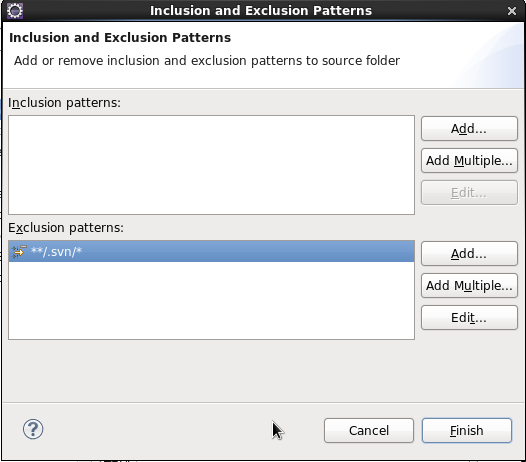
Using Eclipse IDE with Subversion:
Block Eclipse from viewing the hidden ".svn/" directories so that Eclipse does not intrude or alter their contents:- Select the toolbar options: "Project" + "Properties"
- Select the "Java Build Path" + select the "Source" tab
- Select the "Excluded" item and select "Edit"
- In the lower half under "Exclusion patterns:" select "Add..." and enter the pattern **/.svn/*
- YoLinux Tutorial: Subversion Server and Trac Server Installation and Configuration
- YoLinux Tutorial: Cabie Build System - Installation and Configuration
- svnbook.red-bean.com: Open Sourced version of O'Reily Book
- Subversion 1.1 - single page
- Subversion 1.1 - multi-page
- Reference card [pdf]
- Subversionary: Subversion advocacy web site.
 Books:
 |
Version Control with Subversion
by C. Michael Pilato ISBN #0596004486, O'Reilly Press
|

|
 |
Practical Subversion (Expert's Voice in Open Source)
Garrett Rooney ISBN #1590592905, Apress
|
|
 |
Subversion Version Control: Using the Subversion Version Control System in Development Projects
William Nagel ISBN #0131855182, Prentice Hall PTR
|
|

